
Hybrid Classroom · 19 November 2026
Hybrid Classroom Setup Checklist: Cameras, Mics, Displays
A practical checklist of cameras, microphones, displays and room basics to teach students in the room and online together without confusion.
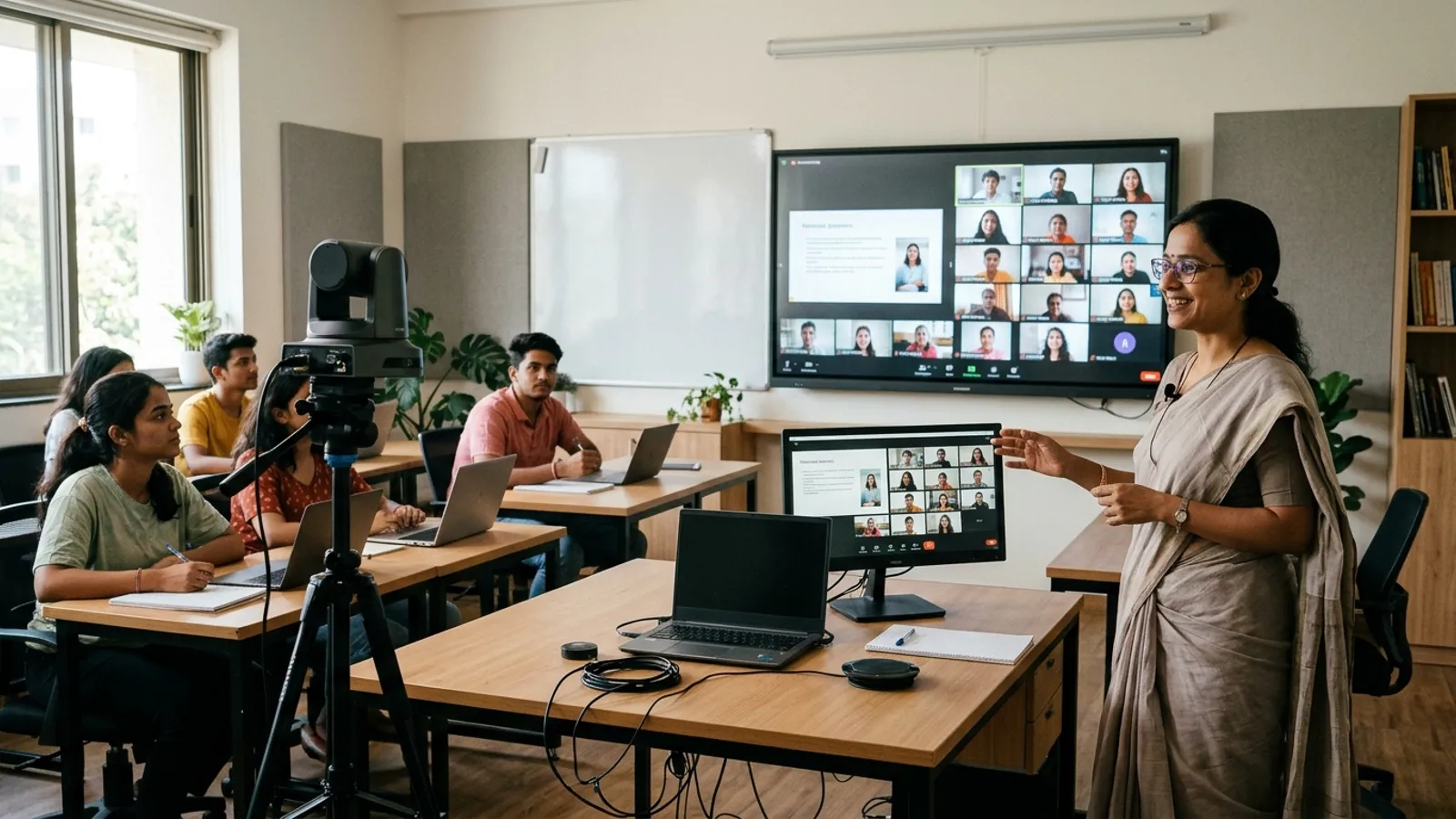 AI-generated illustration
Quick answer
A good hybrid classroom needs a camera for the teacher, a camera or capture for the board, a clear microphone for the teacher, a way to pick up students' voices, and a display so the teacher can see online learners. Add decent lighting, basic acoustic care and a simple, tested connection to your meeting platform. Plan these together, because a good camera with poor audio still gives online students a poor class.
What is a hybrid classroom setup?
A hybrid classroom lets some students sit in the room while others join live from home through Zoom, Google Meet, Microsoft Teams or a similar platform. Both groups should see, hear and interact with each other and the teacher.
The main challenge is balance. Online students should not feel like they are watching a distant CCTV feed, and in-room students should not feel ignored while the teacher answers chat questions.
What should you check before buying equipment?
Before choosing any equipment, answer these questions:
- Room size and shape: How many students sit in the room, and how far is the last bench from the board?
- Teaching style: Does the teacher stay at the podium, walk around, write on a whiteboard, or use a pen tablet or interactive panel?
- Content type: Is it mostly slides, handwritten work, lab demonstrations or discussion?
- Platform: Which tool do you use daily, and does the room computer support it smoothly?
- Internet: Is there a stable wired connection near the teaching position?
- Power and cabling: Are sockets, conduits and mounting points available where you need them?
Answering these first usually prevents buying equipment that does not fit the room.
Which cameras do you need in a hybrid classroom?
Most rooms work well with one to three camera views. Start with the most important one and add more if the teaching style needs them.
1. Teacher camera
This shows the teacher to online students. It can be a wide-angle USB camera or a PTZ (pan-tilt-zoom) camera, depending on how much the teacher moves. Mount it at around eye level or slightly above, facing the teacher, so online students get a natural view instead of looking up at the teacher's chin.
2. Board or content camera
If your teacher writes on a whiteboard or greenboard, online students need a readable view of it. This can include a dedicated board camera, a document camera, or a pen tablet whose screen is shared digitally. Handwriting is often hard to read on a general room camera, so test this carefully.
3. Classroom or audience camera (optional)
This lets the teacher or online students see the room. Check your school's privacy rules and parental consent before recording or streaming students on camera. Many institutes keep this view limited or switch it off by default.
What microphones work best for hybrid teaching?
Audio is the most common weak point. Online students will tolerate average video, but they quickly lose interest when they cannot hear properly.
Teacher microphone
A wireless lapel or headset microphone can keep the teacher's voice consistent even while walking. A podium microphone is simpler if the teacher stays in one place. Pick one approach and use it consistently.
Student audio pickup
Online students need to hear questions from the room. Options can include:
- Ceiling or boundary microphones for general pickup
- A few handheld or table microphones for question-and-answer sessions
- Microphones connected to a small mixer or audio processor
The right choice depends on room size, ceiling height and how often students speak.
Room speakers
Online students' voices need to come out clearly in the room. Wall or ceiling speakers, or a good soundbar in a small room, can work. Keep speakers positioned so they do not feed back into microphones, because echo is a common problem. Many platforms and audio processors offer echo cancellation, but good placement still matters.
Which displays should be in the room?
A hybrid classroom usually needs more than one screen.
- Content display: An interactive flat panel, projector or large display for slides and notes that in-room students see.
- Remote students' display: A separate screen, preferably near the camera, so the teacher can look at online students. Without it, teachers tend to forget them.
- Teacher's confirmation monitor: A small monitor or laptop screen showing what online students see, such as the shared slide or camera view.
Place the online-student screen close to the teacher camera, so when the teacher looks at the screen, they appear to be looking at the camera as well.
How do lighting and acoustics affect the class?
Lighting
- Light the teacher's face evenly from the front or slightly to the side.
- Avoid sitting with a bright window directly behind the teacher, since cameras then show a dark silhouette.
- Keep light off the whiteboard glare spots so the board camera can read the writing.
- Use soft, steady lights instead of a single harsh bulb.
Acoustics
Bare walls, glass and hard floors increase echo. Acoustic panels, curtains, carpets or ceiling treatment can help, depending on the room. Even small improvements reduce echo and make speech clearer for online students.
What does a hybrid classroom checklist look like?
| Area | What to check |
|---|---|
| Teacher camera | Framing, height, field of view, behaves well in the platform |
| Board view | Writing readable at full-screen on a remote device |
| Teacher mic | Clear voice, battery plan, no clipping or buzz |
| Student pickup | Questions from the back row are audible online |
| Speakers | Remote voices are clear, no echo or feedback |
| Displays | Content screen, remote-student screen, teacher monitor |
| Lighting | Even face light, no strong backlight, no board glare |
| Network | Wired connection preferred, backup option available |
| Controls | Simple operation that non-technical teachers can manage |
| Power and cables | Tidy, labelled and safe |
How should everything be connected?
Keep it simple. A common design uses one room computer running the meeting platform, with the cameras, microphones and speakers connected to it through USB, HDMI or an audio interface/mixer. The platform sees them as a camera, microphone and speaker, so teachers can operate it like a normal online meeting.
Think about who will operate it. If the teacher has to adjust many devices before each class, the system will not be used well. Fixed presets, labelled controls and a short instruction sheet are useful, as is a one-touch start where the room system allows it.
What common mistakes should you avoid?
- Buying a premium camera but ignoring audio
- Leaving online students without a clear view of the board
- Placing the remote-student screen far from the camera
- Skipping a speaker-and-microphone echo test
- Ignoring cabling and power until the end
- Not training teachers on the system before day one
How should you test before the first class?
Run a trial session with a colleague joining from another room or location, and ask them to check:
- Can they read the board and the slides?
- Can they hear the teacher clearly while moving?
- Can they hear a student from the last row?
- Do they hear echo when they speak?
- Does the teacher see and notice them on screen?
Fix issues one at a time, then repeat the test with a real class session.
FAQ
Do I need expensive equipment for a hybrid classroom?
Not necessarily. Needs depend on room size, class size and teaching style. A small room can work well with a modest setup, while a large lecture hall usually needs more cameras and microphones. A site assessment helps match equipment to the room instead of overbuying.
What is the most important part of a hybrid classroom: camera or microphone?
Both matter, but clear audio often decides whether online students can follow the class. Start by making sure the teacher's voice and the students' questions are clearly heard, then work on the camera views.
Can teachers use a pen tablet in a hybrid classroom?
Yes. A pen tablet or interactive panel can let teachers write digitally and share the screen with both in-room and online students. It can be useful when the physical board is hard to capture on camera. Check that the platform shows the writing clearly and that the teacher is comfortable with it.
Planning a hybrid classroom for your school, coaching institute or company? Share your room size, class strength and teaching style with Smart Infovision, and request a studio quote for a setup that fits your space and daily workflow.
 Related setupExplore Hybrid Classrooms )}
Quote
Request your studio quote
Tell us about your room and the studio you have in mind. The Smart InfoVision sales team will get back to you to plan the next step.
Helpful to share
- Your name and city
- The studio type you have in mind
- Room size and layout
- Equipment you already own
- Budget and timeline, if you have them